Pages

Monday, October 26, 2015

CECA/CASL Conference 2015- Takeaways for K-2 Library Media


Today's Connecticut Educators Computer Association (CECA) & Connecticut Association of School Librarians (CASL) annual conference provided wonderful learning opportunities for a middle school classroom teacher turned K-2 library media specialist such as myself.

The theme of the conference, "Breakdown Walls: Empower Learners" resonated throughout the individual presentations.  Here are some helpful takeaways and presenter links from the four sessions and keynote address that I attended.

Session 1.  Going Global: Inviting the World into the Classroom

Presenters Nicole Nowakoski (@NicoleNowa) and Carolyn Daniels (@carolynbdmyt) did an excellent job at sharing their experiences with using social media and programs such as Twitter, Skype, Padlet, Blogs, Kahoot and Minecraft to break down the four walls of the elementary school classroom.  Some major takeaways included:
  • Start within the 4 walls first. Begin by modeling Twitter use to your class through a classroom Twitter account. Tweet out morning meeting information, connect locally with other classrooms in district on Twitter.  Tweet student poetry and work - students will focus on spelling with an audience! Eventually go global and connect with the outside world.
  • Use Skype for a "Mystery Skype" - try to guess where other classrooms are in the world that the students are communicating with. This can be done with parents/community members who travel
  • Set up a class blog for students to share their work and thinking
Their Online Presentation:


Session 2. Elementary Learning Centers

Presenter Kate Candido (@KateMCandido) shared some of her great ideas for getting started with learning centers in your K-5 library.  Her rational for learning centers included an emphasis on student collaboration, independent learning, and problem solving. For teachers, learning centers provide opportunities for differentiation, flexible grouping, and targeted group instruction.  Her ideas for centers included QR code listening stations, keyboarding stations, Lego maker stations, trivia question of the week stations, research stations, and online educational game stations. Kate did a great job of using Nearpod to enable audience members to share their own ideas. 

Kate's Media Center's Blog: http://oasmedia.weebly.com/


Session 3. Empowering Young Learners with STEAM Activities and Challenges

Maureen Schlosser (@MaureenSchlosse)and Becky Granantini provided some wonderful picture book inspired STEAM challenges with the class. The books that they most recommended tying in with STEAM challenges included: The Most Magnificent Thing, Going Places, It's Only Stanley, Rosie Revere Engineer, Iggy Peck Architect, and A Storm Called Katrina.  One fun example for the little ones was to read the 3 Little Pigs, and then have the students create a toothpick/marshmallow houses to resist the big bad wolf (a powered fan).  They recommended that rubrics for these projects begin with "I Can" statements. 

Here is an example of the activity for A Storm Called Katrina:


Session 4. Hands on Exploration of Makerspace Resources

Jenny Lussier (@jluss) did a wonderful job at introducing some Makerspace technology tools, while still providing ample time for the audience to work with the tools in a hands-on environment.  Participants explored Makey Makeys, Little Bits, Spheros, Ozbots, and more. Their online presentation provides information about these Makerspace resources. 

Their online presentation: 


The Keynote Presentation - Angela Maiers 


Angela Maiers (@AngelaMaiers) delivered an inspiring presentation which delivered her message that we do not have a technology gap, but a literacy gap.  Literacy, which goes beyond the traditional sense, enables us to understand complex messages, convey meaning, and rally others.  In the 21st century, the literacy road map is changing, as are the rules of the road. We must be constant unlearners and relearners, and help our students to do the same. Angela reminded us that kids want to share, create, and collaborate.  She also warned us to run away from any speaker that claims they are the expert and a guru, because only the room, with its collective minds, is the true guru.

Angela's online presentation materials:


Sunday, October 25, 2015

App Smashing Padlet & Hello Crayons with a side of Pumpkin Soup

I have been excited and surprised to see some apps and programs that I used to use as an 8th grade social studies teacher also work with my current K-2 library classes. I incorporated Padlet (originally Wallwisher) for years in my social studies classes, but did not think of bringing it into my library classes until a colleague recently described it as a K-12 app.  Having only used the web version and not the app, I was delighted to see how K-2 friendly the iPad app was. The best feature had to be the built-in QR code scanner that easily lets the students access a shared Padlet through a teacher displayed QR code.  


While I understood that the QR code feature could help my students easily access our shared Padlet, I was originally skeptical about using this app with my K-1 students. As an 8th grade social studies teacher, I had used Padlet primarily as a space for my students to share their thinking through typed responses. It was not until I did a little research online and found a wonderful article, Kindergarten Padlets, from engaged.net, when I understood that Padlet can also be used to share student thinking through illustrations.

By app smashing Padlet with a drawing app, students can save their drawings to the iPad camera roll, and easily upload them to a collaborative class Padlet.


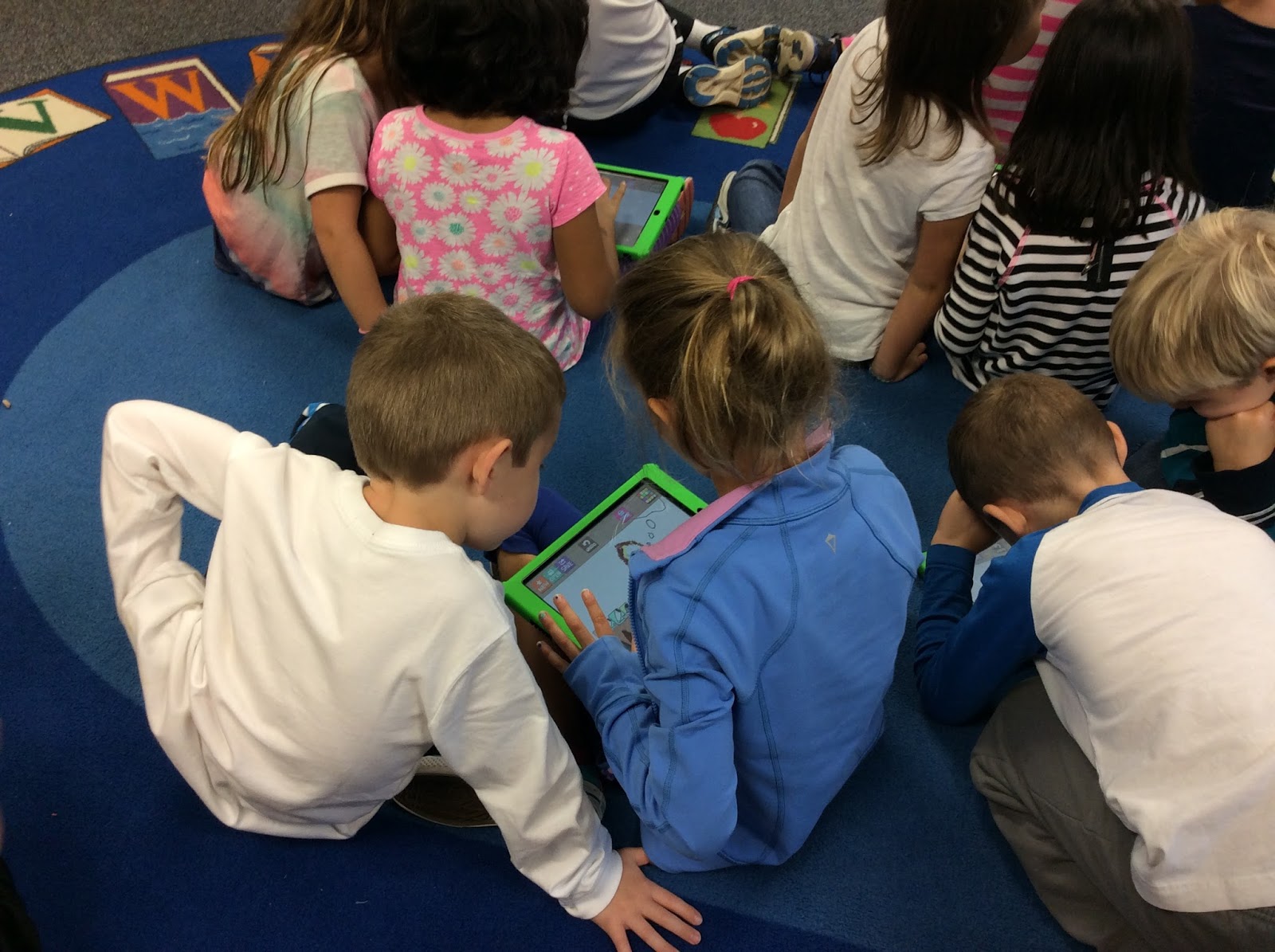
These students are using the drawing app "Hello Crayons" before sharing to Padlet


On my first go-around with Padlet in the library, I decided to have my K-2 students draw a response to a question concerning a character in the picture book Pumpkin Soup, by Helen Cooper.


In this perfect story for autumn, the Cat and Squirrel become worried when their friend the Duck storms off after a squabble concerning their roles in preparing their daily pumpkin soup.  We never know where the Duck disappeared to before returning, but the Cat and Rabbit present many fanciful ideas through thought bubbles.  For our class reflection, my students drew their own thought bubbles of what they imagined the Duck was doing all along.  I had my students work in pairs, and reminded them to take turns sharing better than the 3 character did in the story!


This Padlet contains some of my students' thought bubbles about what Duck was doing the whole time:


On this first go around, I miss-planned the timing of my 30-minute lesson and ran out of time to explain to the whole class how to upload their drawings to the class Padlet.  Many groups simply didn't finish their drawings in time. As a result, I only had a few students in each class finish in time for me to help direct them individually how to access Padlet through the QR code scanner and upload their saved image. The Padlet above contains a mix of K-2 drawings.  One unintended consequence was a shared K-2 Padlet, but in the end the students loved seeing the work posted by the other classes.

I plan to use this application more regularly so that the steps become routine, as well as explore some other options such as the drawing features in Nearpod.


Some technical notes:
If Hello Crayons is not saving the illustrations to the camera roll, check the app settings to make sure that permissions are granted. Additionally, if the built in QR code scanner on Padlet is not working, your firewall might be the issue. 

Tuesday, September 29, 2015

Why should the older kids have all the fun? Share student-generated book reviews with Chatterpix!

Like countless others out there, I've caught the Pinterest Bug. Creating a Pinterest-inspired "readbox" quickly became one of my first goals upon entering my new role as K-2 library media specialist.


Like other "readbox" set-ups out there, I hoped to have QR codes next to the books, that would play student-created book reviews or book trailers when scanned.  However, being in a K-2 library posed some initial challenges.  How could I have my kindergartners, first graders, and second graders begin creating book reviews in the first weeks of the school year?  I needed a program that was easy to learn for a K-2 student, captivating, and appropriate for this task. This brought me back again to Chatterpix:


See my blog post from 9/12/15 on using Chatterpix for QR code scavenger hunts


ChatterPix adds an animated mouth to still photographs, and lets the user record their voice over the now animated photo for up to 30 seconds.   Using Chatterpix, I began a weekly routine of having one student from each class record a book review in front of their class. The following week, the books that the students choose to share make their way to the "readbox" where students from other classes and grades can watch their reviews with a QR code reader on a class iPad.

To prepare for the recording, I post a graphic/instructions on the SMART Board reminding the students to share the title of the book, if they liked it or not, and an example from the book to explain why. Here are some examples of student book reviews so far:


The students have loved both volunteering to record their review in front of the class, and watching the reviews created by the students in other classes.  Students can view the book reviews on the "readbox" during book check-out time.  I opted for having one student per class create a book review each week, so that I would continually have a fresh batch of book reviews to fill the "readbox". This process also provided the students with an opportunity to simultaneously practice technology skills and public speaking.  Our students have library twice a week for 30 minutes. We have been recording these reviews on their second library day of the week. It takes about 5 minutes of library time, and makes a great initiation activity to begin the class with.

Here's an image of students eagerly watching book reviews during book check-out time:


I have done these weekly book reviews with Chatterpix for the past three weeks now, and hope to continue this for the rest of the school year!  


Some technical notes:
To create the QR Codes, I used qrstuff.com.  I originally hosted the videos in Google Drive, and created QR codes out of links that had privacy settings at "anyone" with the link can view.  For some reason (I'm not sure if it is our school firewall, or an issue with Google Drive hosting these videos formats) I was often getting an error message and the video would not play.  After this occurred a few too many times, I began hosting the videos in Drop Box and making a QR code from the Drop Box share link.  No problems viewing since then!  The free QR code reading app that we have been using on the iPads is I-nigma.  Give yourself about 30-40 minutes to create the QR codes for the 7 or 8 student created videos.  


Monday, September 21, 2015

Add audience and purpose to library routines lessons with Puppet Pals

Why should I teach my kindergarten students library routines, when I can empower and engage my 2nd grade students with this task?

Our 2nd grade students creating Puppet Pal videos
 to teach the kindergarten students library routines

In these first weeks of the school year, I wanted to add audience and purpose to our lessons on library routines.  While teaching our students how to use a shelf marker and check out a "just right" book is essential, I didn't want to miss out on an opportunity to increase student engagement and introduce some creativity and collaboration.

Over the past few years, I have become increasingly influenced as an educator by Daniel Pink's Drive and Alan November's Who Owns The Learning?  One major takeaway has been that we must empower our students and engage them through purposeful and meaningful work.

This led me to the following question: Why should I teach my kindergarten students library routines, when I can empower my 2nd grade students with this task?

This question led me to Puppet Pals, an easy to use digital storytelling app.


Instead of spending whole lessons reviewing library routines with my second grade students, I decided to challenge them.  As the oldest grade in our K-2 elementary school, could they create puppet show movies on the iPad to teach the kindergartners? I placed the second grade students in small groups of 2-3, and provided them with a script sheet, a clipboard/pencil, and an iPad.


We reviewed the scripts, explored how to use Puppet Pals 2, and introduced how to export saved files to our class Google Drive folders on the iPads.  After two sessions of writing scripts, reflecting on library routines, and introducing Puppet Pals 2, the students were ready to create on our third session. One of the great things about Puppet Pals 2, the students could take photographs of the library to set the scene for their show! 

Here's an example of a video for finding a just right book:


Please excuse my voice in the background, I learned 
to give class instructions more quietly when students are recording!


And another example for using a shelf marker (or "hold my place card"):


Today I surprised my kindergarten students with the videos that the second graders made just for them.  After we watched the videos, we reflected on the main ideas presented.  When I asked for their feedback to share with the second graders, they gave a resounding "Thank You!", "It was awesome!", and "We loved it!"

This year I plan to continue adding a meaningful audience for student work, and hopefully to extend that audience to beyond the classroom.


Saturday, September 12, 2015

App Smashing QR Codes and ChatterPix for a K-2 Library Scavenger Hunt


I couldn't wait to start out my fist year in a K-2 library with a QR code scavenger hunt that taught the students where different types of resources are located in the library media center.

However, making a QR code scavenger hunt for a K-2 library posed some initial challenges.  I found some great resources online, and inspiration from blogs like Gwyneth Jones' The Daring Librarian, but most resources out were not suitable for K-2 students. 

This struggle led me on a journey to develop a QR code scavenger that would work for all of my students, including my beginner and pre-readers.  

My first decision was to app smash QR codes with ChatterPix.


ChatterPix adds an animated mouth to still photographs, and lets the user record their voice over the now animated photo for up to 30 seconds.  Channeling the talking paintings from Harry Potter, I wanted to make the books come alive and talk to the students about their section of the library. 


Here is an example of a video played from the picture books section of the library:


Here is another example from one of our books from section 398.2: 


Using videos meant that my beginner and pre-readers could gather information from the QR code scavenger hunt. However, I needed a way to assess the students' understanding.  This led me to creating a map with a corresponding number matching section.

With this document, students wrote the number from the map next to the type of book that they found there.  The images of book covers on this document matched the books that spoke to them through the videos.


We even included a QR for the checkout desk, that talked to the students about how they will check out their books later that week:


In the end, I decided to take my kindergarten and first grade students on a guided tour of the sections of the library that would be most relevant to them.  The second grade students were given free roam to explore through this activity, and they performed wonderfully. 


*Some final technical notes:
The QR Codes were generated through qrstuff.com.  To make the QR codes look cleaner and easier to scan, first shorten the hyperlink through a service like tinyurl, bitly, or google url shortener.  The videos that were created through Chatterpix were downloaded to the camera role on my iPad, and uploaded to Google Drive through the Drive app.  Before creating a QR code with the link to the stored video, make sure to set the share settings in Google Drive to "anyone with link can view." Post any questions in the comment section below!


Sunday, September 6, 2015

Interactive Bulletin Boards with "Makey Makey" hardware and "Scratch" programming

A goal of getting the students and staff excited and curious about our transition to a library learning commons led me to this idea:


It's an interactive bulletin board that brings together the power of "Makey Makey" and "Scratch" to teach the viewer about the new curriculum of our library learning commons.  


I had worked with the Makey Makey invention kits and Scratch coding program with students in my summer camps and continuing education courses to program cardboard musical instruments and even cookie jar alarms:


Having a handful of these awesome devices around meant that I could spare one to create this bulletin board without denying my students the opportunity to tinker with one in a maker station.  


The Scratch program that runs this board is incredibly simple, and anyone could learn how to create one of their own after minimal exploration of the program.  Simply use the "when key is pressed" block under the "events" category.  Record the new sound you want to play (using the top sound tab), and insert it with a "play sound" block found under the "sound" category.  Be sure to attach the aluminum foil (or whatever conductor you use) to the correct output key on the Makey Makey, complete the circuit with an "earth" conductor, and voilà, you are good to go!


I hope to update this interactive Makey Makey bulletin board throughout the year, and to eventually get my students involved in the programming and construction. 


Saturday, September 5, 2015

The adventures begin!

The adventures in library begin!  

After 9 years of teaching 8th grade social studies, 4 of which spent as a part time technology instructional leader, I begin a new chapter as a library media specialists in a K-2 elementary school. Joining a veteran library media specialist at our school of over 800 students, we embark on a journey together to transform the library. 

This blog will serve as a place to learn about our school library's transition to a learning commons model.  Our library learning commons will seek to support the school curriculum with a focus on literature appreciation, technology skills & operations, digital citizenship, creativity collaboration & innovation, and inquiry.

Through these blog posts I will share our successes, struggles, and technology tips to transform student learning opportunities.